

Display WLAN password – how it works
 Marc Schröder
Who doesn’t know it? You have purchased a new internet-enabled device or would like to grant friends access to your WLAN and display the WLAN password, but then you are faced with the problem: What was the WLAN password again? This typical situation can quickly become frustrating. This may be because the password was written down on a piece of paper somewhere and then misplaced, or because it has never been needed again since the network was set up.
This article highlights practical solutions that will show you how you can always get your Wi-Fi password without any problems.

Display WLAN password: How it works:
Using the software - MyKeyFinder
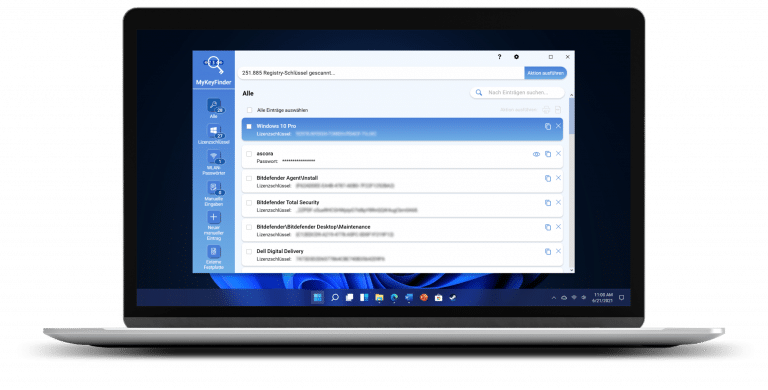
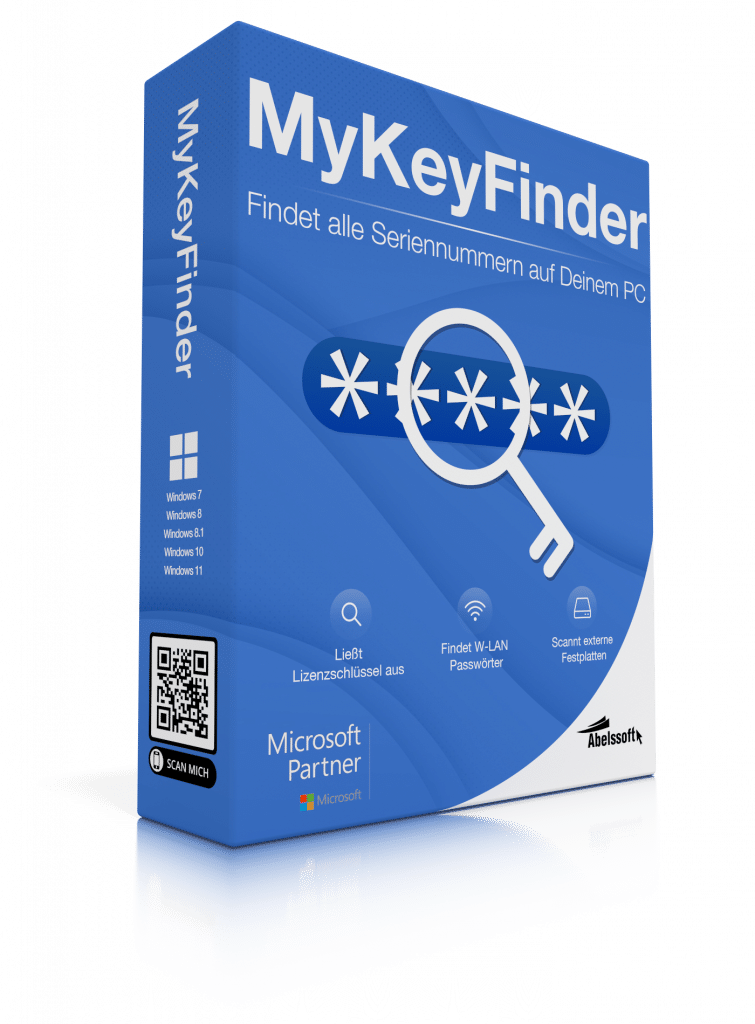
A common way to display stored Wi-Fi passwords is to use special software tools. A good example of this is the innovative “MyKeyFinder” program, which is installed on the computer and enables access to all stored network passwords. Außerdem bietet es die Funktion, nicht nur WLAN-, sondern auch andere Netzwerkpasswörter auszulesen, was es zu einem unverzichtbaren Werkzeug für die Verwaltung von Passwortinformationen macht. Zusätzlich zeichnet es sich durch eine äußerst benutzerfreundliche Bedienung aus. Folgende Schritte verdeutlichen dies:
- Automatic scan after program start: As soon as MyKeyFinder is opened, it automatically starts searching for stored Wi-Fi passwords without the need for complicated settings.
- Clear display of results: The program displays a clear list of all WLAN passwords found, which are easy to identify and select.
- Direct use of the retrieved Wi-Fi passwords: Users can simply select the required Wi-Fi password from the list and use it.
MyKeyFinder proves its strength not only in the simplicity and efficiency of finding WLAN passwords. It also makes it incredibly easy to retrieve other types of passwords, such as those for email accounts, Windows licenses, or software licenses.
Using the command prompt in Windows
For users of Windows systems, the command prompt offers another option for displaying the WLAN password. By entering specific commands, you can access the list of saved networks and their passwords. However, this method is very time-consuming, as some basic knowledge of the command line interface commands should be available. The entry is made as follows:
- Open the command prompt: Search for “cmd” or “command prompt” in Windows and open it.
- Command for displaying WLAN profiles: Enter the command netsh wlan show profiles to display a list of all saved WLAN profiles.
- Show details of a specific profile: To display the password of a specific WLAN, enter the command netsh wlan show profile name=”WLAN-NAME” key=clear, where “WLAN-NAME” is replaced by the name of the WLAN network. You will find the password in the “Key content” line.
Using the router admin page
Each router has an administration page on which the network settings can be managed. The WLAN password can be displayed or changed by accessing this page via a web browser. This usually requires entering the IP address of the router in the address bar of the browser, followed by logging in with the admin user name and password. This method not only enables the password to be displayed, but also the comprehensive management of the network. To use this method, please do the following:
- Access the router admin page: Open a web browser and enter the IP address of the router in the address bar. This is often “192.168.0.1” or “192.168.1.1”.
- Login: Enter the admin user name and password. You can often find this information on the router sticker or in the router documentation.
- Navigate to the Wi-Fi settings page: Search for the section for Wi-Fi settings or security settings.
- View or change password: Here you can view the current Wi-Fi password or set a new password.
Contact your Internet service provider (ISP) directly
If all other methods fail, direct contact with the Internet service provider (ISP) may offer a solution. Many ISPs offer support for restoring or resetting WLAN passwords. This option should be considered, especially if the router was provided by the ISP and no access information is available.
Frequently asked questions (FAQ)
Retrieving a Wi-Fi password means finding out the password for a specific Wi-Fi network that is currently stored on a device.
Das Auslesen des WLAN-Passworts ist legal, solange es sich um Dein eigenes Netzwerk handelt oder Du die ausdrückliche Erlaubnis des Netzwerkbetreibers hast.
Did you find the article helpful? If so, leave us a good review.
Your page rank: