

Speed Up Your PC: How to Optimize Windows with PC Fresh
 Marc Schröder
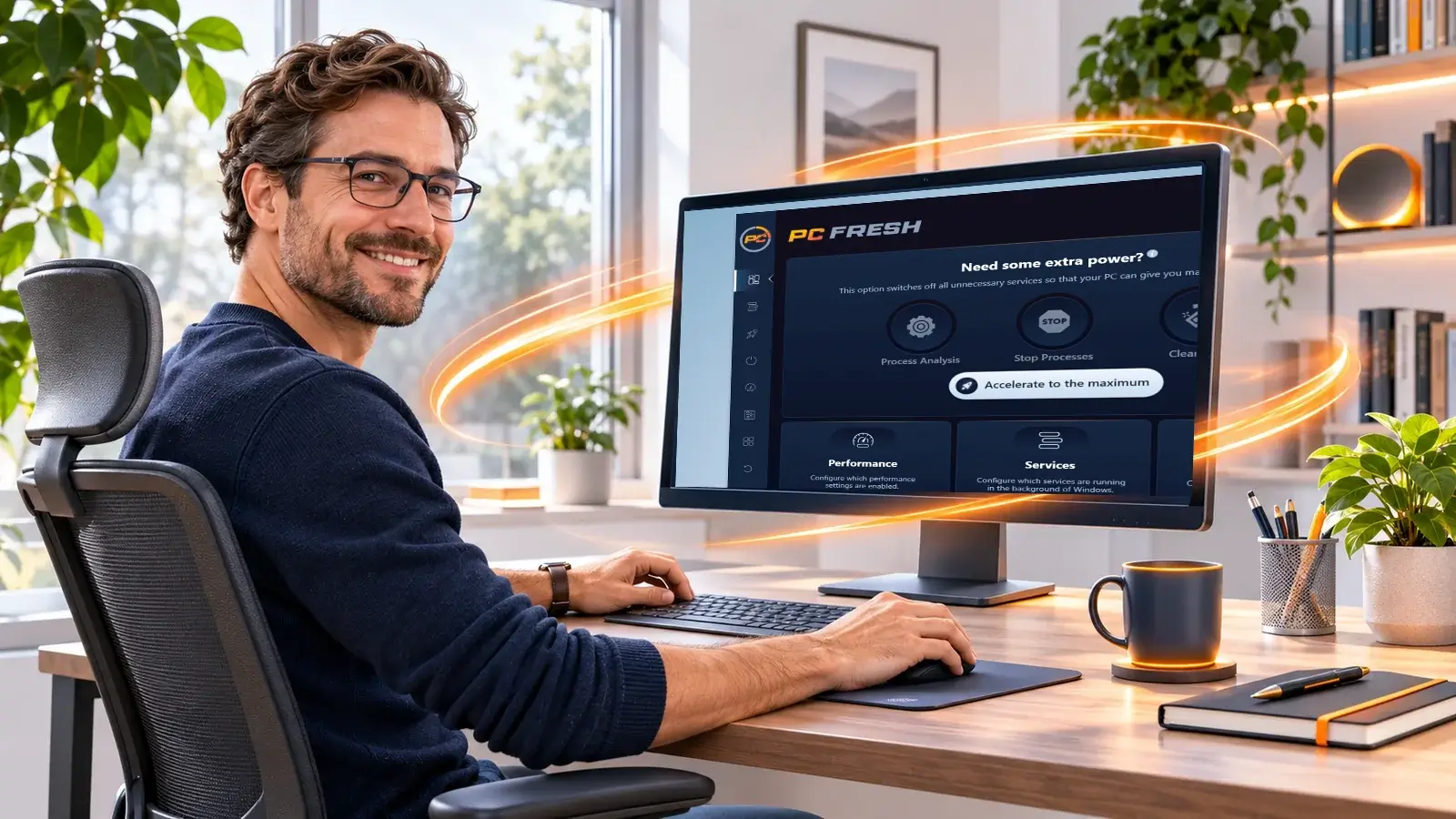
Is your PC taking longer and longer to start up, are programs slow to respond, or is Windows no longer running as smoothly as it used to? Here, you’ll learn how to speed up your PC, which settings really help, and how the free software PC Fresh can help you optimize your computer in specific ways.
What does it mean to make a PC faster?
Making a PC faster means using the computer’s existing resources more efficiently. The goal is to reduce unnecessary system load, improve startup times, and ensure that programs respond as smoothly as possible.
This doesn’t always require new hardware. It’s often worth starting by checking your startup programs, running background services, and important Windows settings.
Which areas can be optimized on a PC?
Some of the most important areas to focus on include Windows startup, CPU usage, RAM, and power settings. Which optimizations make sense depends on what is slowing down the computer.
Can I make my PC run faster without buying new hardware?
Yes, if performance issues are caused, for example, by unnecessary programs running at startup or suboptimal system settings, making the appropriate changes can help. However, if the problem stems from technical limitations—such as insufficient RAM or a slow hard drive—a hardware upgrade may be a good solution.
Why does a PC slow down over time?
A computer can slow down over time if numerous programs start automatically, background processes constantly consume system resources, or available storage space becomes limited. These problems are particularly common and manifest as long startup times, slow-responding applications, and sluggish performance.
Too many programs that start automatically
Many applications start automatically when Windows starts, even though they aren’t needed right away. The more programs that load at the same time, the longer it can take for the computer to be fully ready for use.
Background processes consume system resources
Even programs that aren’t currently visible on the screen can use processor power and memory. If this uses up a lot of resources, it can have a negative impact on other applications.
Limited storage space and technical limitations
A system drive that is nearly full can slow down Windows operations. Limited RAM, outdated drivers, or a slow hard drive can also be the cause.
How can I make my PC run faster?
How can I make my PC run faster? The most important steps are reducing unnecessary startup programs, checking resource-intensive background processes, freeing up disk space, and adjusting suboptimal Windows settings.
The following steps will help you identify and specifically address many common performance bottlenecks.
Reduce the Number of Programs That Start Automatically
Open Task Manager and check the applications that start automatically. Disable any programs you don’t need immediately after Windows starts. You should check security-related or unknown entries first.
Close applications you don't need
In Task Manager, you can see which applications are using a particularly large amount of processor power or memory. Close any programs you don’t need to free up resources.
Free up storage space
Remove applications you no longer use, and check for temporary files using Windows Storage Management. Important personal data and unknown system files should not be deleted without first verifying them.
Check Windows Settings
Make sure you have the latest drivers, relevant Windows updates, and appropriate power settings. Unnecessary background activities can also affect system performance.
Use PC Fresh to Optimize Your System
PC Fresh combines several Windows optimization tools into a single application. It lets you check startup items, background services, and performance settings without having to search for each feature individually in the Windows menus.
What is PC Fresh, and how does the software help with a slow PC?
PC Fresh is a Windows optimization program from Abelssoft that allows you to check and fine-tune various system settings. The application helps identify unnecessary burdens and make better use of your computer’s existing performance reserves.
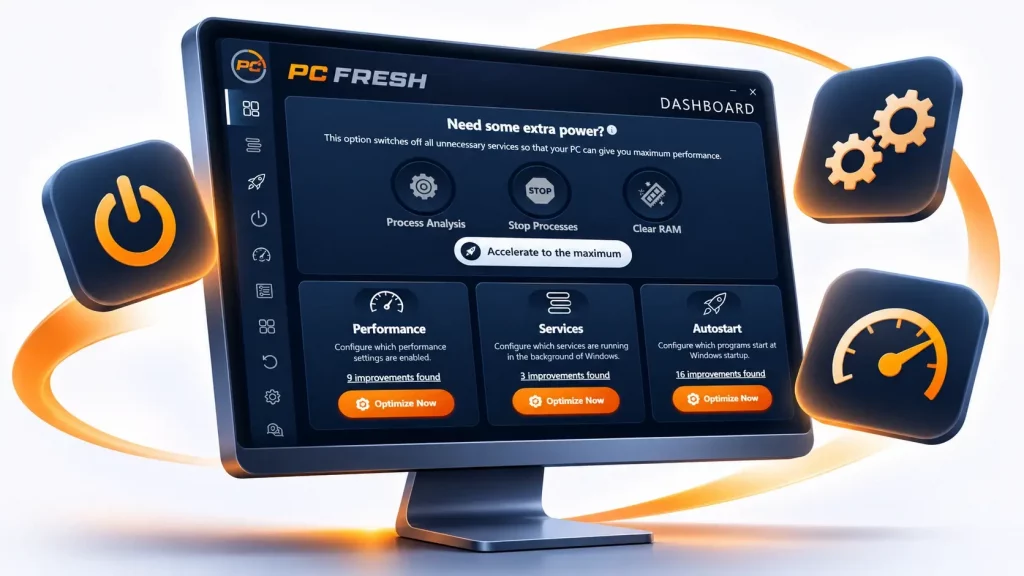
Windows Optimization via a Central Interface
PC Fresh provides access to various optimization features within a single program. These include settings for Windows startup, background services, and other performance-related areas.
Recommendations and Customizations
The software helps users select appropriate optimizations. In addition to recommended settings, many options can be reviewed and modified individually.
Power Now! for power needed on short notice
The Power Now! mode allows you to reduce selected, unnecessary background activities as needed. This makes additional system resources available for the applications you are currently using.
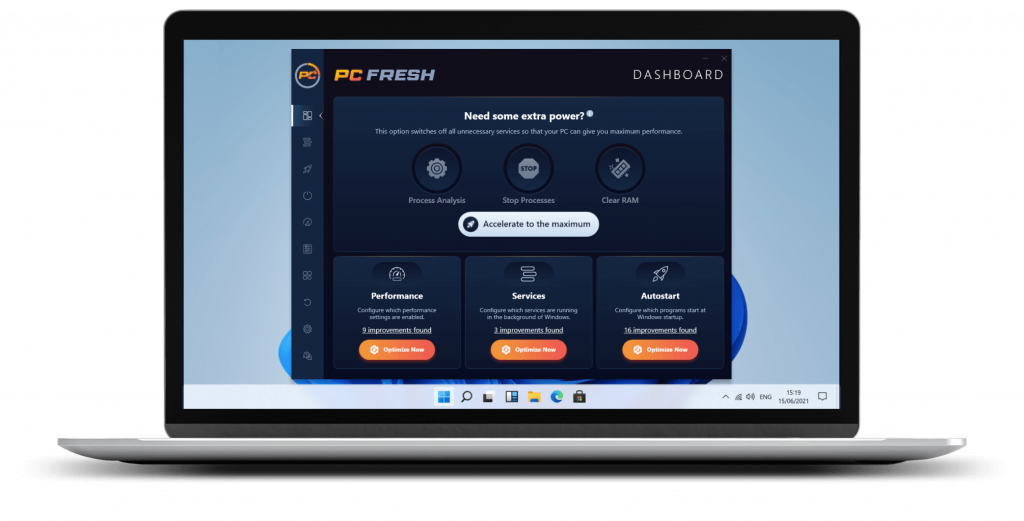
Which Windows features can be optimized with PC Fresh?
PC Fresh offers a variety of tools for targeted Windows optimization. Of particular interest are the features for managing startup items, monitoring background services, and optimizing RAM and system performance.
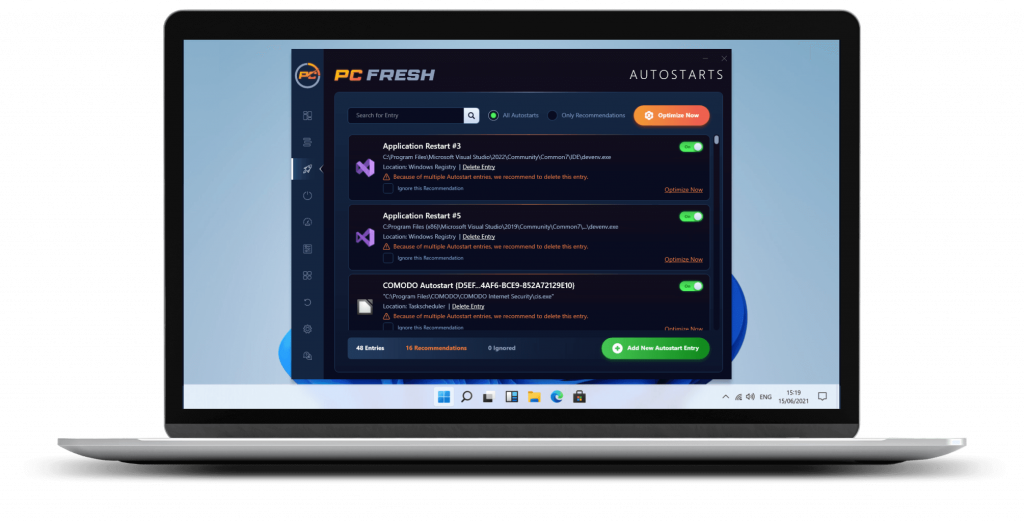
Manage Startup Programs
With PC Fresh, you can control which programs start automatically with Windows. You can selectively adjust unnecessary startup entries so that fewer applications load at the same time.
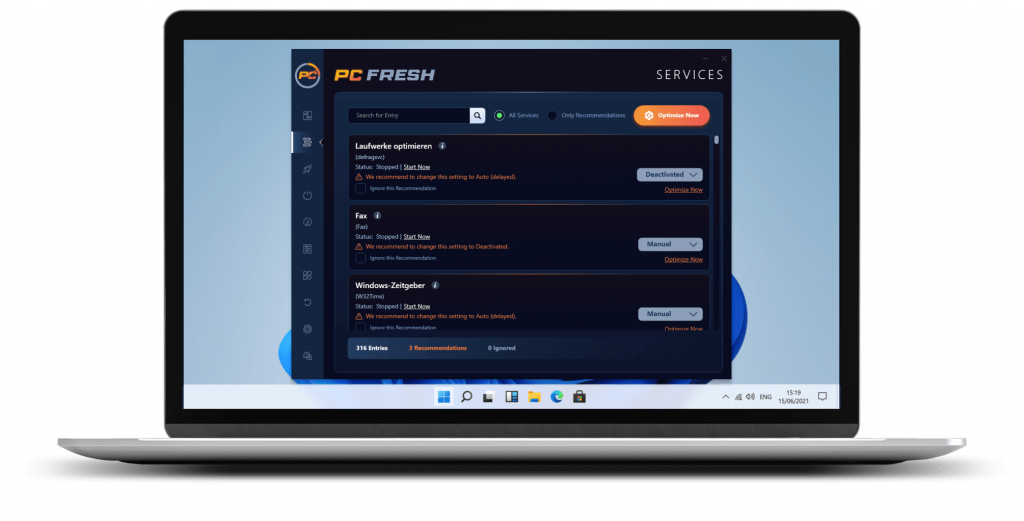
Monitor Background Services
The software displays Windows services and their corresponding settings. This allows you to check which background activities are necessary and which ones can be reduced, if applicable.
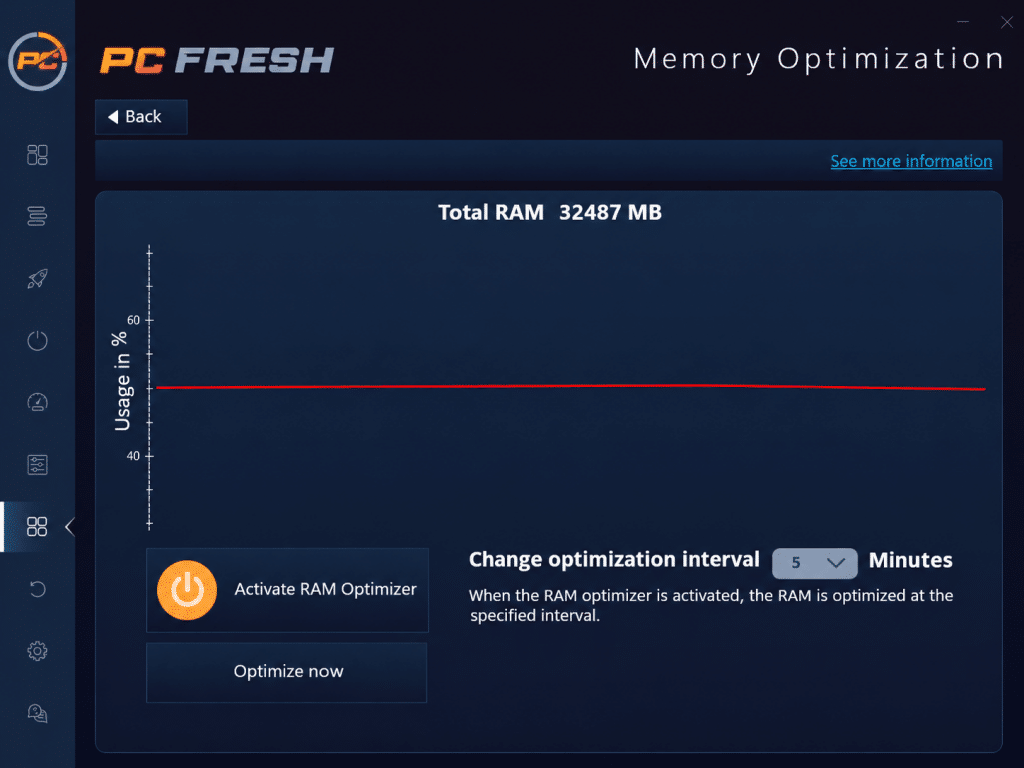
Optimize RAM
PC Fresh offers features for monitoring and optimizing system memory. These adjustments are particularly important when the amount of RAM actually available is running low.
Use System Information and Other Tools
Using the built-in mini-tools, you can view system information and memory usage, among other things. Other tools allow you to make additional customizations to your Windows system.
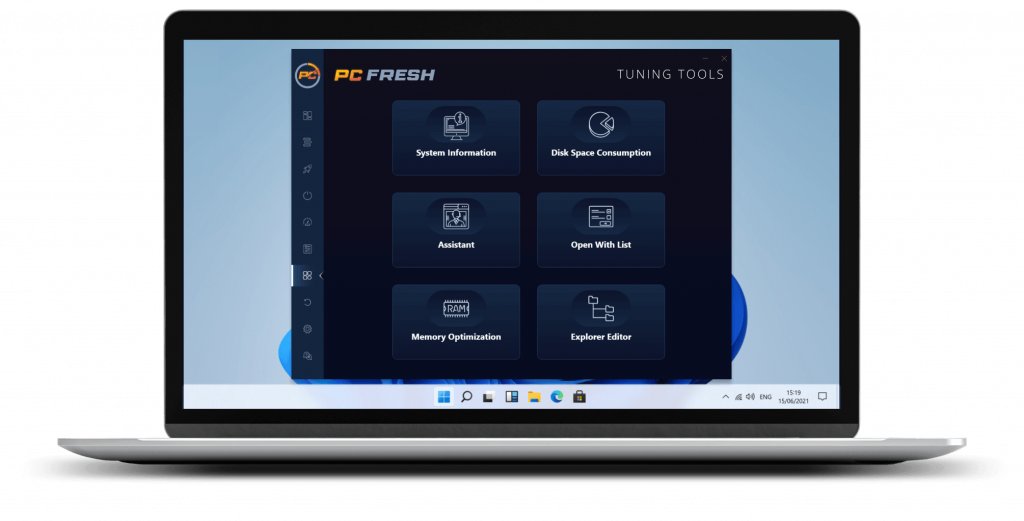
Customize Performance Settings
PC Fresh offers various options for configuring system performance. You can review optimization suggestions and decide for yourself which settings you want to change.
Step-by-Step Guide: Speed Up Your PC with PC Fresh
With PC Fresh, you can check and adjust various Windows settings in just a few steps. The following guide shows you how to do this.

Step 1: Download and install PC Fresh
Download PC Fresh using the download button and follow the installation instructions. Then open the program on your Windows computer.
Step 2: Check System Information
First, get an overview of your computer and the optimization options available. Pay special attention to startup items, background services, and performance settings.
Step 3: Review Optimization Suggestions
Review the available recommendations and decide which settings you want to change. You should not disable unknown or security-related system services without further investigation.
Step 4: Implement Appropriate Optimizations
Apply the desired changes using PC Fresh. These may include, for example, changes to startup entries, background services, or performance settings.
How to Speed Up Your PC: Online Guides, Built-in Windows Tools, or PC Fresh?
If you want to speed up your PC, there are several methods you can use. Online guides explain possible steps, Windows’ built-in tools allow you to adjust system settings directly, and PC Fresh bundles various optimization features into a single application.
Online Guide: Information and Instructions
Online guides help users understand the typical causes of performance issues. The steps described must then usually be carried out on one’s own computer.
Built-in Windows Tools: Direct Control Over the System
Using Task Manager and other built-in tools, you can change many settings without needing additional software. In some cases, this requires opening several different Windows menus.
PC Fresh: Centrally Manage Various Optimization Features
PC Fresh provides optimization suggestions and tools for managing startup items, services, and performance settings all in one place. This can be particularly helpful for users who prefer a unified interface.
Comparison Chart: Online Guides, Windows, PC Fresh
| Function | Online Guide | Windows Built-in Tools | PC Fresh |
|---|---|---|---|
| Explain Optimization | Yes | Partially | Yes |
| Manage Autostart | No | Yes | Yes |
| Manage Background Services | No | Yes | Yes |
| View System Information | No | Yes | Yes |
| Central Optimization Dashboard | No | No | Yes |
| Power Now! Mode | No | No | Yes |
| Additional installation required | No | No | Yes |
Frequently asked questions and answers (FAQ)
You can disable unnecessary startup programs, close unused applications, free up disk space, and check Windows settings. PC Fresh offers additional tools to centrally manage various optimization tasks.
Possible causes include ongoing updates, background programs, high memory or processor usage, malware, or technical issues. The Windows Task Manager helps you identify resources that are under heavy load
Programs that you don’t need immediately after Windows starts can often be removed from the Startup folder. You should check security programs, important driver components, and unknown system entries first.
If you’re actually running low on RAM, closing unnecessary programs can help. However, Windows also uses available RAM as cache, so low RAM usage alone doesn’t guarantee better performance.
Power Now! mode allows you to reduce selected, unnecessary background activities so that additional resources can be made available for active applications when needed.
Did you find the article helpful? If so, leave us a good review.
Your page rank: